Building - Accounting
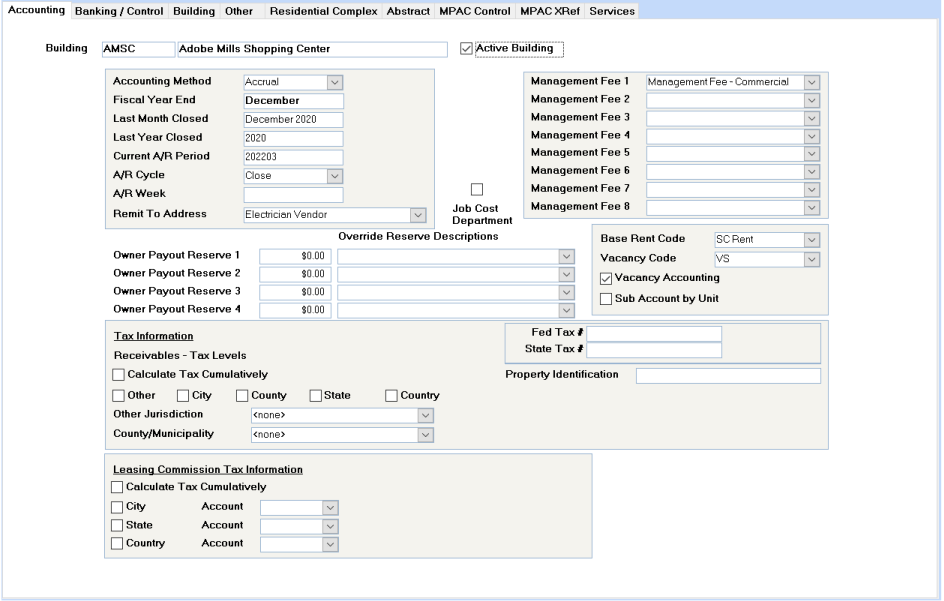
The Property Setup Wizard provides the information for the Accounting screen. If everything is correctly set up in the Property Setup Wizard, the Accounting screen will rarely be accessed.
Building
The Building ID and Building Name will display at the top of the screen. Neither field can be changed, although the building name can be changed if you return to the main screen.
Active Building
If a building is flagged as Inactive, the Begin Month program will ignore this building.
Accounting Method
The options are Cash or Accrual, which cannot be changed. If you made the wrong choice in the Property Setup Wizard, you have two options: set the building up again with the correct accounting method or contact Spectra Support. To have Spectra Support make this change for you will be a billable service.
Fiscal Year End
Only the month of the fiscal year end will display. If the fiscal year end needs to be changed, your options are to set the building up again or to contact your Client Account Manager about the Year End Change Module.
Last Month Closed
If you have run the Permanent Year End, the Last Month Closed will be the last month of that Fiscal Year. If you have run the G/L Month End – Close Accounting Period, the last accounting period closed will display here.
The Building – G/L Month End – Close Accounting Period is an optional process, which will stop any prior period transactions from posting to a month which you have closed. This is useful if you have reported to your owners for a month and don’t want any additional transactions posted to that month. Only journal entries done by users who are authorized to do "Closed Period Journal Entries" will be allowed to make journal entries to periods that are closed in any period after the Last Year Closed.
Last Year Closed
Only the Permanent Year End (Building – G/L Year End – Close Fiscal Year) will update this field. This Permanent Year End should only be run after the year end auditors’ entries have been entered and all financial statements have been run.
If the Permanent Year End has been run and subsequent entries are required to that closed year, you may change this Last Year Closed field to a prior year. This doesn’t change the Last Month Closed field, however, so only journal entries will be allowed by users authorized to make "Closed Period Journal Entries".
Current A/R Period / A/R Cycle
The system will not let you run the Begin Month twice for the same building. That feature is controlled by these two fields. The Current A/R Period in YYYYMM format indicates what the month the receivables are in and the A/R Cycle indicates what the next process will be – Begin stands for the Begin Month process that charges rent and Close for Tenant Month End. As each of these processes is run, this screen will be updated, so that you can’t run the same one again accidentally.
In the above example, the Current A/R Period is 202203 or March 2022 and the AR Cycle is Close. The next process to be run on this building would be the Tenant Month End for March 2022.
A/R Week
If you charge rents weekly, the next week to be charged will display here.
Remit To Address
The company name and address shown on the Configuration file will automatically print at the top of the Tenant Invoices or Statements. If you wish a different return address to print on Tenant Invoices or Statements, go to the Building – Addresses screen and set up that company name and address as a Remit To Address.
Job Cost Department
This option only appears if you have been authorized for the Job Cost module.
Owner Payout Reserve
Enter the amount that should always be withheld from monthly automated payout to the owner for this building. You may choose to hold back an amount to cover any payables that may arise. Also, if the Tenant Security Deposits are deposited into the same bank as the operating funds and shouldn’t be forwarded to the owner, enter the amount of the Tenant Security Deposits in the Owner Payout Reserve.
The 2010 General Release enhanced this feature so that two Owner Payout Reserves are now stored on this screen. Also, both Payout Reserves can be updated from the Building – Reports – Owner Statements – Update Owner Payout Reserves menu item. In a subsequent release, 2 additional Owner Payout Reserve fields were added for a total of 4.
Management Fee 1 to 8
Up to eight management fees can be set up on any building. Please consult the Management Fee help file for more information.
Base Rent Code
Whatever code is shown here (from the Property Setup Wizard) is the code that will be used for the Base Rent charges for any tenants in this building. You may change this default code here or revise the base rent code on each tenant’s Charges screen.
Vacancy Code / Vacancy Accounting
If you are using accrual accounting, you may wish to show the Rent as the total Potential Rent and any vacancies as Vacancy Loss on the General Ledger. Select the Vacancy Code and the Vacancy Accounting flag, so that the Begin Month program will debit and credit the G/L account numbers shown on the Vacancy Code with the Expected Rent found on the Building – Unit file.
If you use Vacancy Accounting and Move In and Out dates are entered prior to the Begin Month begin run, the Begin Month will still calculate the Vacancy amount. Here’s an example:
Expected Rent on Building Unit file: $ 8,556.35
Tenant Moves Out September 15th
Tenant Moves In September 20th
Number of Days vacant in month 4
Vacancy Calculation on Begin Month: $ 8,556.35 x 4 / 30 = $1,140.85
The Begin Month program divides the Expected Rent by the number of days in the month and multiplies the result by the number of days that the unit is vacant.
No G/L accounting will be done for if you select these fields for buildings using cash accounting.
Sub Account by Unit
If you have a condominium and want to produce financial statements for each individual unit, select this option. If you do select this option, you must set up revenue and expense accounts for each unit number – showing the unit number as the sub account.
E.g. If your Rent Revenue account is 3100 and you have 10 units, numbered 0101, 0102, 0103, etc., you would need to set up G/L accounts as follows: 3100.0101, 3100.0102, 3100.0103. The Begin Month program would credit these individual accounts. Set up individual account.sub accounts for all revenue and expense accounts.
Tax Information
Fed and State Tax #
If you charge sales taxes at any level, enter your Federal and State Tax ID numbers here.
Property Identification
This field has a very specific use for some programs. One use for which it is currently used is the Minnesota Certificate of Rent Paid to complete the "Property ID number or parcel number" field. If not required for a specific program, leave it blank.
Receivables – Tax Levels
Calculate Tax Cumulatively
If you select this option and have both Province/State and Country tax levels indicated, the program will calculate the country tax first and then calculate the province/state tax based on the total of the charge plus the federal tax. E.g. If the country tax is 7% and the province/state tax is 8%, and the charge is for $200.00, the system would calculate Federal Tax of $200.00 x 7% = $14.00 and Province/State tax of ($200.00 + 14.00) x 8% = $17.12.
If the Calculate Tax Cumulatively flag were not set, the Province/State tax would be $200.00 x 8% = $16.00.
Other, City, County, State, Country
Specify the level of taxes to be charged on this building. Remember that you can exempt individual tenants from paying taxes and you can also specify which Regular Charge codes should have tax calculated on them
Other Jurisdiction
If you have selected "Other" above, you will need to specify the Jurisdiction.
County/Municipality
If you selected "County" above, you need to specify which county this building is in.
Banking Control Screen
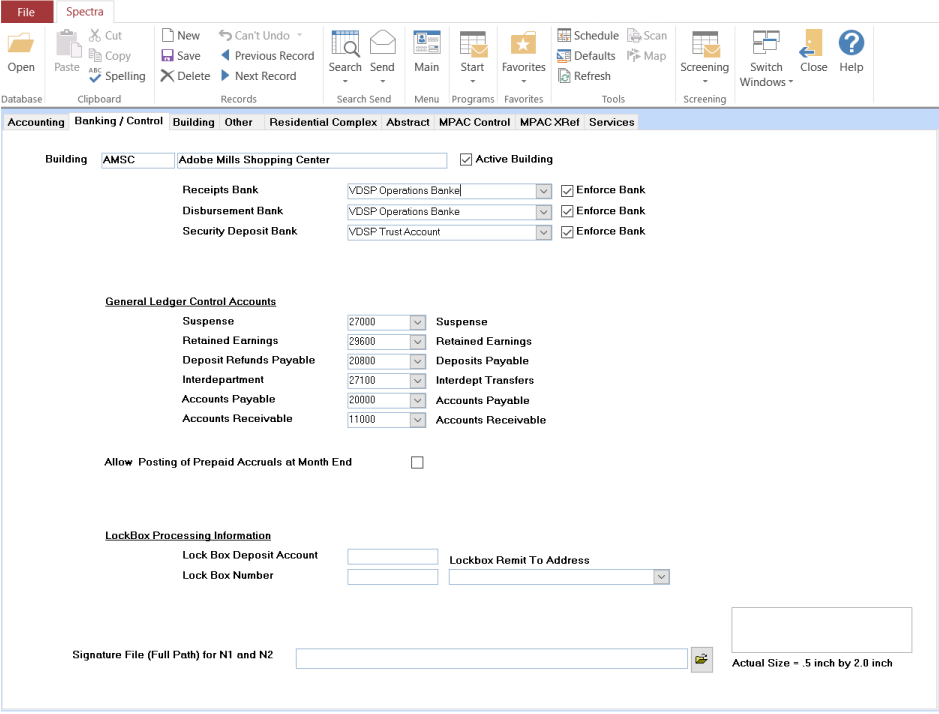
The information on this screen came originally from the answers supplied in the Property Setup Wizard. Other than the Building ID and Building Name, any field may now be changed.
Receipts Bank / Disbursements Bank / Security Deposit Bank:
Select the 3 banks that are used for these purposes, whether it’s the same bank account or three different bank accounts.
If you select a bank in another building, the system will check if the required Due to/from Accounts exist. If one or both do not exist, the system will create them automatically. You must allow these system-generated Due to/from accounts to be set up by the system.
Enforce Bank?
If you enforce the Receipts Bank, the system will not allow Receipts to be deposited for this building into any other bank account. If you have several bank accounts that you use for different purposes, you should select the main bank that you use for depositing Tenant Receipts as the Receipts bank and then remove the enforcement from the Enforce Bank field. In this way, the system will default to the Tenant Receipts bank, but will allow you to change the bank to a different bank account, if required.
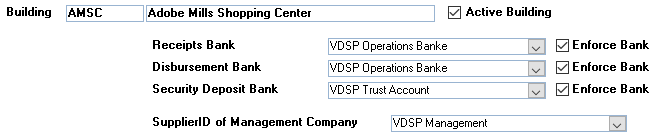
Supplier ID of Management Company
This field will only display if you have selected the option on the Configuration File to "Reimburse Operating Bank Account for Deposit Refunds Applied to A/R".
If your Security Deposit Bank is different from your Receipts Bank, any amount that is applied to the Tenant’s Receivable is left in the Security Deposit bank. You can set your system up to automatically create a payable to the management company, so that this can be deposited into the Receipts Bank. Here’s how:
- System Tasks – Spectra Utilities – Configuration File – select this option:

- Find – Buildings – Accounting – Banking/Control screen – select the name to which these checks should be payable. i.e. Your company name.
When you complete the Deposit Refund, if you have applied part of the deposit refund to the tenant receivables, two invoices will show on the Select Invoices to Pay screen – one to the tenant and the other to the management company.
General Ledger Control Accounts
These are important account numbers used by the system, so select them carefully.
If the system cannot find the account to which it is to post, or if through a system error, a batch is unbalanced, the system will look at the building file, find the Suspense account, and post the entry to the Suspense account. Thus, the Suspense account should be reserved for system errors. i.e. Any balance in the Suspense account indicates something that needs to be rectified.
The G/L Year End – Close Fiscal Year will zero out the Revenue and Expense accounts to the Retained Earnings account specified here on the Banking/Control screen.
We use this account as a clearing account during the process of refunding deposits. It’s not critical that it be a separate account, just something that we prefer.
The system maintains each building or department in balance as a separate set of books. Therefore, if you enter a journal entry to debit one building and credit another, the system puts the offsetting entries into the Interdepartment Account to keep each building "in balance". A consolidated Balance Sheet will net these Interdepartment entries out to nil, so the same account number should be used on all buildings. Do not use the Suspense account for the Inter-department account, as the Suspense account must be reserved for system-generated errors.
If you are using Accrual Accounting and if you have both modules, the system will need to know which G/L account numbers you are using as the control accounts for your payables and receivables.
If you are using Cash Accounting, the system will need to know which account number to use for the Unearned Revenue account. In Cash Accounting, when you apply a tenant’s receipt to the various outstanding charges, the system reads the credit account of those charge codes, and posts the payment to those G/L accounts, i.e. debit Bank and credit Rent, Parking, Late Fees, etc. If a tenant prepays his rent or the payment is not applied, the system doesn’t know what to credit, so the entry is debit Bank and credit Unearned Revenue.
When you subsequently run the Apply Unapplied Credits program after the Begin Month program, the payment is applied to the charges, and the system can complete the posting. The entry is debit Unearned Revenue and credit Rent, Parking, Late Fees, etc.
If you want this Unearned Revenue or Prepaid Rent to be reflected on your Income Statement, select a revenue account. Otherwise, select a liability account.

If you wish to reclassify tenant credit balances as Prepaid Revenue instead of as Tenant Receivables, you may run the Prepaid Accrual Process found on the Building – Monthly Processes menu. Before you can do that, however, you must tell the system whether you want to run the process for specific buildings and what the account numbers are for your Prepaid Receivables and Prepaid Revenue. That’s the purpose of this Prepaid Accrual Setup Wizard found on the Spectra Utilities menu. Or, you may select the option on individual buildings by entering the above information.
- This option is available only for buildings using accrual accounting.
- You will be able to enable this option on a per building basis.
- The reversing journal entry posting date will default to the first day of the next month.
- You will only be able to run this menu item once in a month for any building.
- The journal entry will be detailed by tenant.
The Prepaid Accruals Last Posted will be blank until you have run your first journal entry and will then be automatically updated by the system.
Building Screen
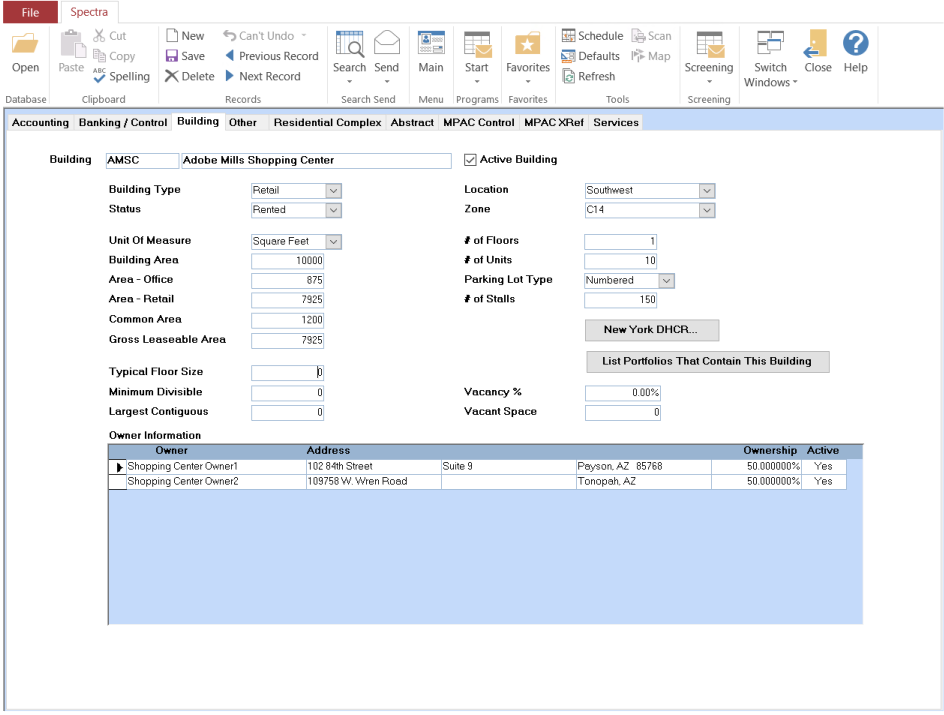
This screen shows general information about the building relating to the number of floors, units, parking lot information, square footages, location, zone, etc.
Gross Leasable Area:
If you have licensed the Cost Recoveries module, the system uses this field to calculate each tenant’s proportionate share of recoverable expenses, based on the tenant’s leased area divided by this Gross Leasable Area.
Owner Information
The building’s owner information is displayed. If changes are required, go to the Find – Owners – Details screen.
List Portfolios That Contain This Building
Selecting this button displays a report showing all portfolios that contain this building.
Reports
The Property Profile menu item displays many of these fields, which will also print on the Building Master Listing found on the Building – Reports Menu – Master Listings.
Other Screen
The Other screen shows other information as shown above. You may select pre-existing names or to add an item in one of these fields, just type in the name and hit
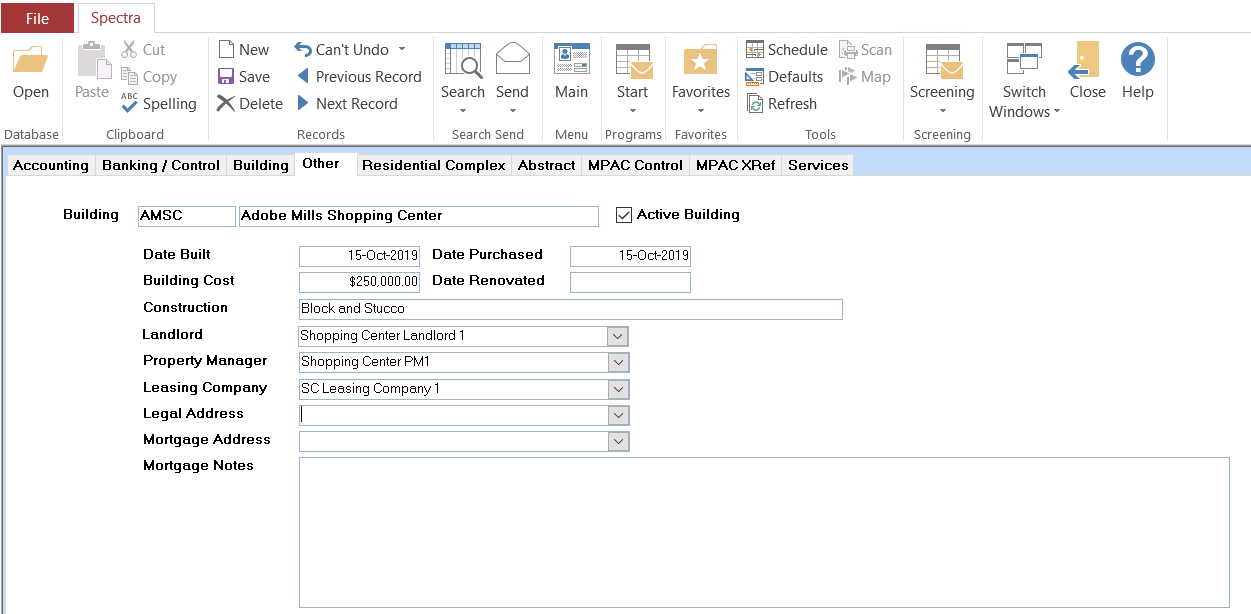
The Property Profile menu item displays many of these fields, which will also print on the Building Master Listing found on the Building – Reports Menu – Master Listings.
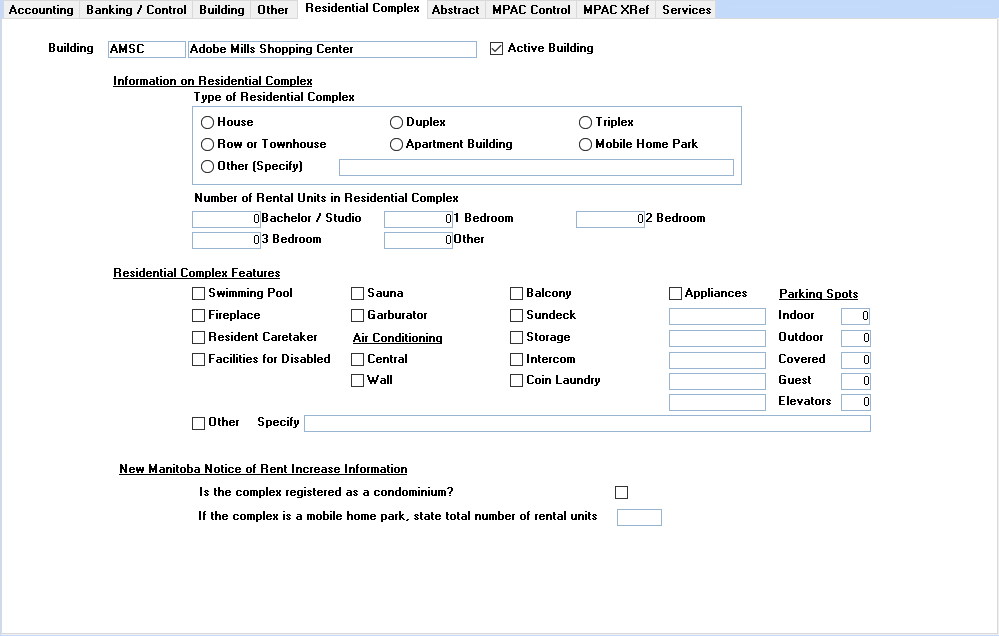
Residential Complex Screen
The information on this screen is used by one of our custom Rent Legislation Control modules.
Abstract
If you have split the responsibilities within a complex, you may want to use the Abstract screen to record who is responsible for each item. These fields are available when printing the Standard Lease or Lease Renewals.
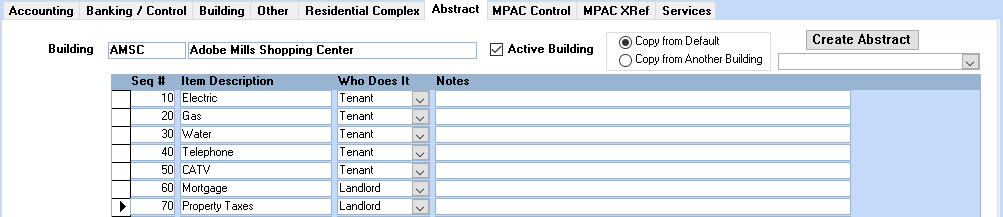
When editing these fields for a new building, you have a choice of copying from the program default or copying from another building, which has been modified to suit your requirements.
